 vyberun
Spaces and cards
Group your projects, terminals and servers the way you work.
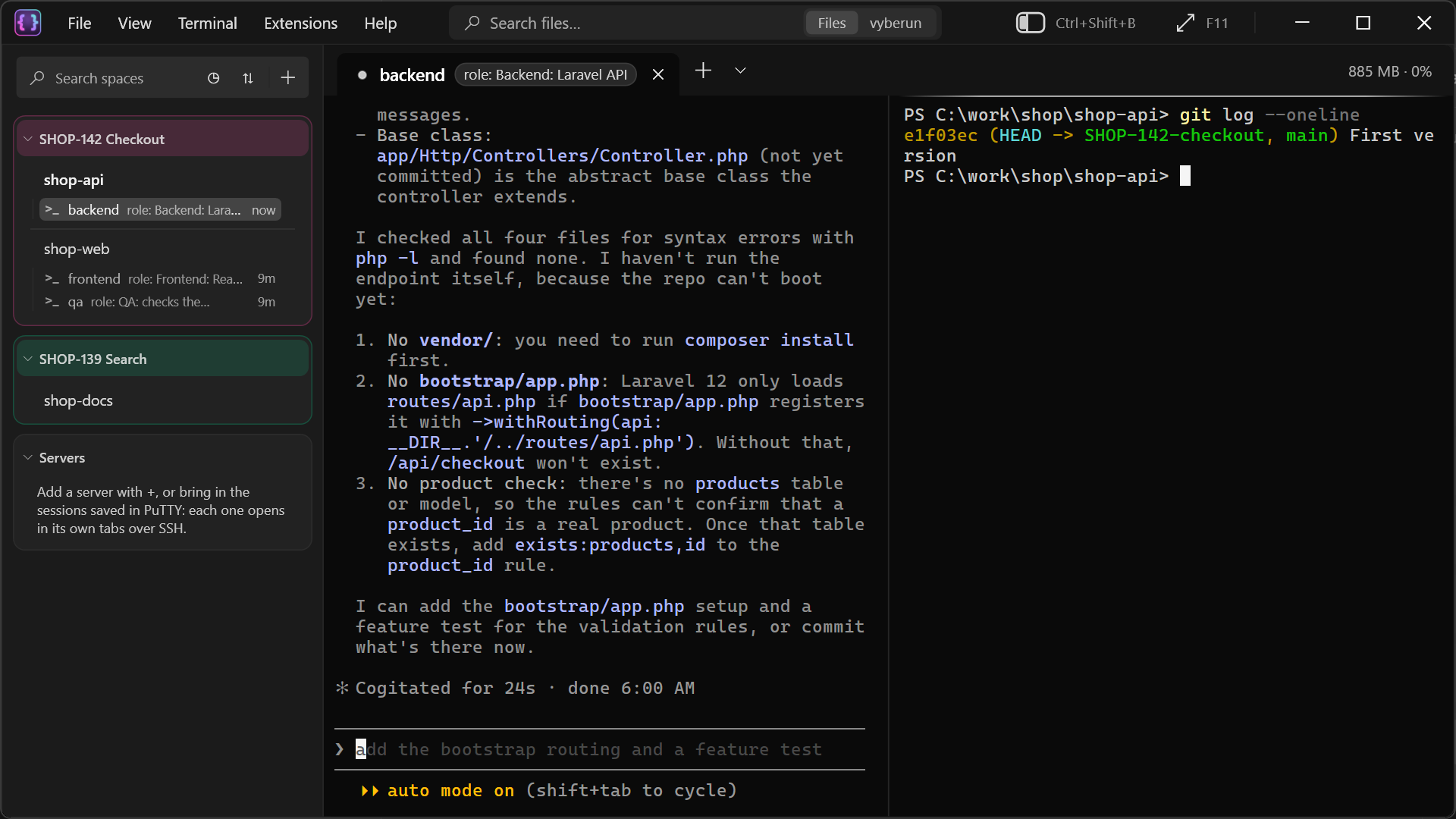
Spaces
A space is a group of cards, for example one per ticket, client or product. Make as many as you like.
- Click + at the top of the sidebar, next to Search spaces.
- Name the space.
- Put cards in it: hold Ctrl and drag a card onto it, or click ⋯ on the card ▸ Move to space.
General and Servers are built-in spaces: new cards land there, and they can't be renamed or deleted. Once you have spaces of your own, General shows only while it has cards in it. Server cards can go in your spaces too.
- Fold a space: click its name. The card you're in stays in view.
- Reorder spaces: hold Ctrl and drag a space's name.
- Colour a space: right-click its name ▸ Color. Its header is tinted with it.
- Rename or delete it: right-click its name. Deleting a space puts its cards back where they came from: projects in General, servers in Servers.
Each space's header sums up what runs in its cards, such as "1 waiting · 2 working", even when it's folded. Click the summary to go there.
Cards
A card is a project folder, a server, or a set of terminals. Click it and its tabs open, just as you left them. Under it, each tab is listed with its role and when you last worked in it (25m). Cards you haven't touched today are dimmed.
⋯ on a card opens its menu:
| Item | Does |
|---|---|
| Run | Runs one of the project's commands (see Projects) |
| Open in … | Opens the project in your editor |
| Open Folder | Opens it in File Explorer |
| Open in Terminal | Opens a new tab in its folder |
| Combine with… | Puts two related folders in one card, such as a backend and its frontend |
| Color | Writes the card's name in a colour |
| Icon | Puts a picture of your own (PNG, JPG or ICO) beside its name |
| Links | Keeps links with the card, such as its ticket or its pull request |
| Pin to top | Keeps it at the top of its space |
| Move to space | Moves it to another space |
| Remove from list | Takes it out of vyberun. The folder and its files stay where they are. |
To move a card, hold Ctrl and drag it. A card with links shows a link icon next to its name: click it to open them.
Terminals without a project
Not everything belongs to a project. Click + next to a space's name ▸ New terminal… for a card that just holds terminals.
Finding your way
- Search spaces, at the top of the sidebar, filters it as you type.
- ◷ next to it shows only the cards you worked in within the last hour, today, the last 7 days, or the dates you pick. Each card stays in its own space. Its × shows everything again.
- ⇅ sorts each space's cards: your own order, the most recent first, or the oldest first.
- Ctrl+Shift+R lists your cards, the most recent first (see Find and search).
Archiving a space
Done with a ticket? Right-click its space's name ▸ Archive space. It leaves the sidebar with its cards.
To find it again, open View ▸ Sidebar ▸ Archived spaces…. Search by a space's or a card's name, and choose Restore to bring it back.
The sidebar itself
- Ctrl+Shift+B hides or shows the sidebar.
- Drag its edge to make it wider or narrower.
- Hold Ctrl and scroll over it to make everything in it bigger or smaller.
- Settings ▸ Sidebar has more: compact cards on one line, and which parts are shown.